
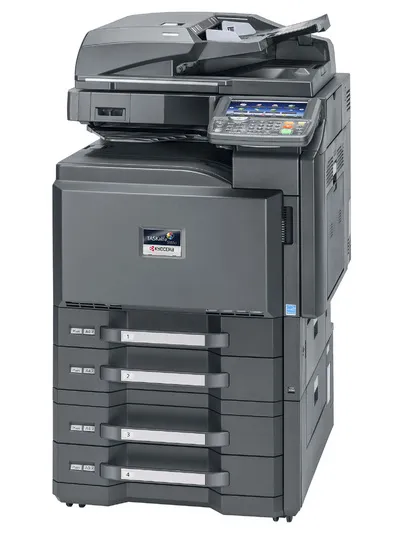
In our library you can copy, print and scan for your own personal use, quickly and easily using your library card with credit. Other services are available on request.
Printing and copying
Self-services
- To use these services you need to charge your library card with credit
- To charge the card with credit go to the loan counter or use the self-service machine located on the ground floor next to the information desk
- For personal use, from the MZK stock, maximum size A3
- Self-service MFDs are located in the
- Science, Technology and Medicine (6th floor)
- Humanities and Social Studies (4th floor)
- Foreign Libraries (2nd floor)
- Ground Floor
MFDs enable you to:
- make b/w or colour copie
- print files from computers in reading rooms or
Services on Demand
- Copying parts of documents (maximum size A3, not more than 20 pages in the reading room while you wait, more than 20 pages upon agreement)
- Based on a printed order you may receive copies of
- entire documents
- large format originals (b/w, one-sided)
- microfilm and microfiche (A3, A4, b/w, onesided)
Filled in order forms may be handed in at any loan counter, your copies will be prepared in the Newspapers and Juornals Reading Room.
Other Services
Digital copies of historical materials (you can order this service in the Manuscripts and Old Prints Reading Room / 4thfloor)
- Digital copies of works in the public domain through the EOD service
- an order can be made directly using the MZK online catalogue
Tutorials and instructions

Printers/copiers can be found in:
- Rental / ground floor
- Foreign libraries / 2nd floor
- Periodicals reading room / 2nd floor
- Humanities Study Room / 4th floor
- Natural and Technical Sciences Study Rooms / 6th floor

Skenovací stan ScanTent
Skenovací stan představuje ideální nástroj pro rychlé, kvalitní, a přitom bezplatné skenování dokumentů za pomoci vašeho vlastního chytrého telefonu. Zajišťuje optimální osvětlení dokumentu, kontrastní pozadí a funkci stativu.
V kombinaci s aplikací DocScan je možné telefonem skenovat automaticky a mít tak volné ruce pro otáčení stránek, či pro přidržení dokumentu. Pořízené skeny lze automaticky oříznout a uložit ve formátu PDF.
Při práci s DocScan a ScanTent můžete očekávat, že naskenujete 300stránkovou knihu (což odpovídá 150 snímkům) přibližně za 12-15 minut. Obecně lze říci, že za pouhou hodinu je možné naskenovat více než 500 snímků.
Skenovací stany naleznete ve 4. patře ve Studovně humanitních věd a ve Studovně rukopisů a starých tisků.
Aplikaci DocScan si můžete zdarma stáhnout pro Android na Google Play pro iOS na AppStore.
Postup skenování:
- V aplikace DocScan vytvořte nový soubor.
- Režim snímání nastavte na Automatic.
- Položte telefon na držák skenovacího stanu tak, aby fotoaparát telefonu ležel na kulatém otvoru desky (a mohl tedy snímat pracovní plochu).
- Naskenujte požadované strany dokumentu.
- Zkontrolujte vytvořené skeny a spusťte ořez pomocí automaticky navržených, případně manuálně upravených rámečků.
- Uložte skeny do souboru PDF.
