The Digital Library MZK contains digitised books, newspapers, periodicals, manuscripts, early printed books, music scores, archival materials, maps, art prints, and audio recordings. These works were digitised as part of projects such as Manuscriptorium, Kramerius, Europeana Travel, EOD, the National Digital Library (NDK), and Národní fonotéka.
The Moravian Library in Brno also provides a directory that allows users to access other digital libraries operating in the Czech Republic that use the Kramerius system. The Moravian Library in Brno is not responsible for other digital libraries and does not manage them in any way; it solely provides access to them through the directory.
The directory
Why can't I access certain documents from home?
Access to the Digital Library MZK is restricted by copyright law. We are only permitted to provide free access to works by authors who have been deceased for at least 70 years and for which the 50-year term of publishers’ rights has also expired. Newspapers and periodicals are made available 110 years after their publication date. Protected/non-public documents may only be viewed on computers in the reading rooms of the Moravian Library. If you come across a book that should be available, or if you’d like to suggest a title for the DNNT, please use the user support of the Digital Library MZK.
Getting started with the Digital Library MZK
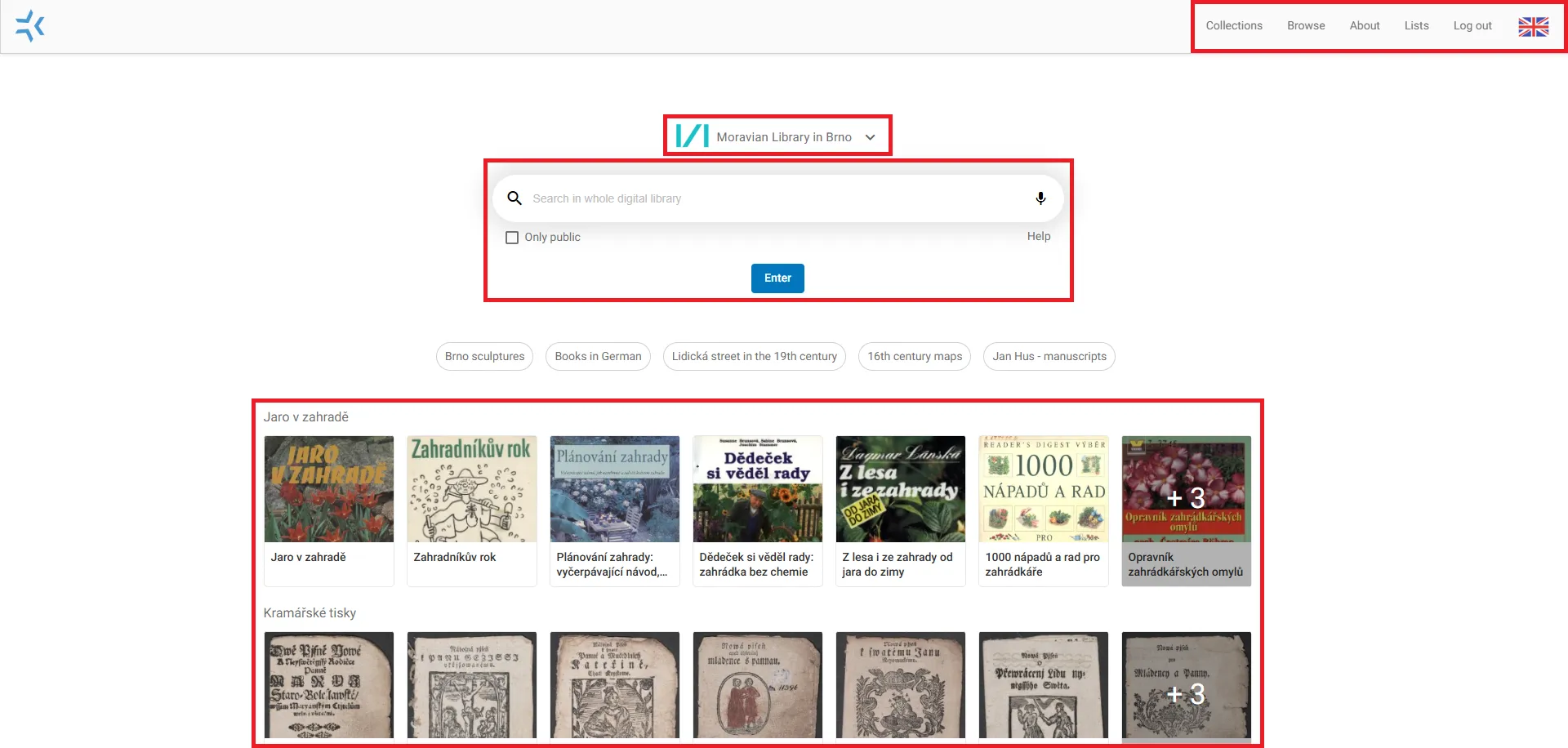
The home screen of the Digital Library MZK is primarily designed for searching for documents.
The main search bar is located in the center of the top of the screen.
Next to the search field is a Only public button, which, when checked, filters the search results to show only public documents.
At the bottom of the window, you'll find recommended titles to browse.
Above the search field, you'll find the name and logo of the digital library. If you click on the name or logo, you'll be redirected to a directory where you can select another digital library to browse.
At the top right, there is also a menu with the options Collections, Browse, About, and a language button to change into English, Czech, German, or Slovak.
Home screen of the Digital Library MZK
How to search for a document?
There are several ways to search for documents in the digital library. You can either use the main search bar or the menu on the top right side, which includes the Browse and Collections options.
Main search bar
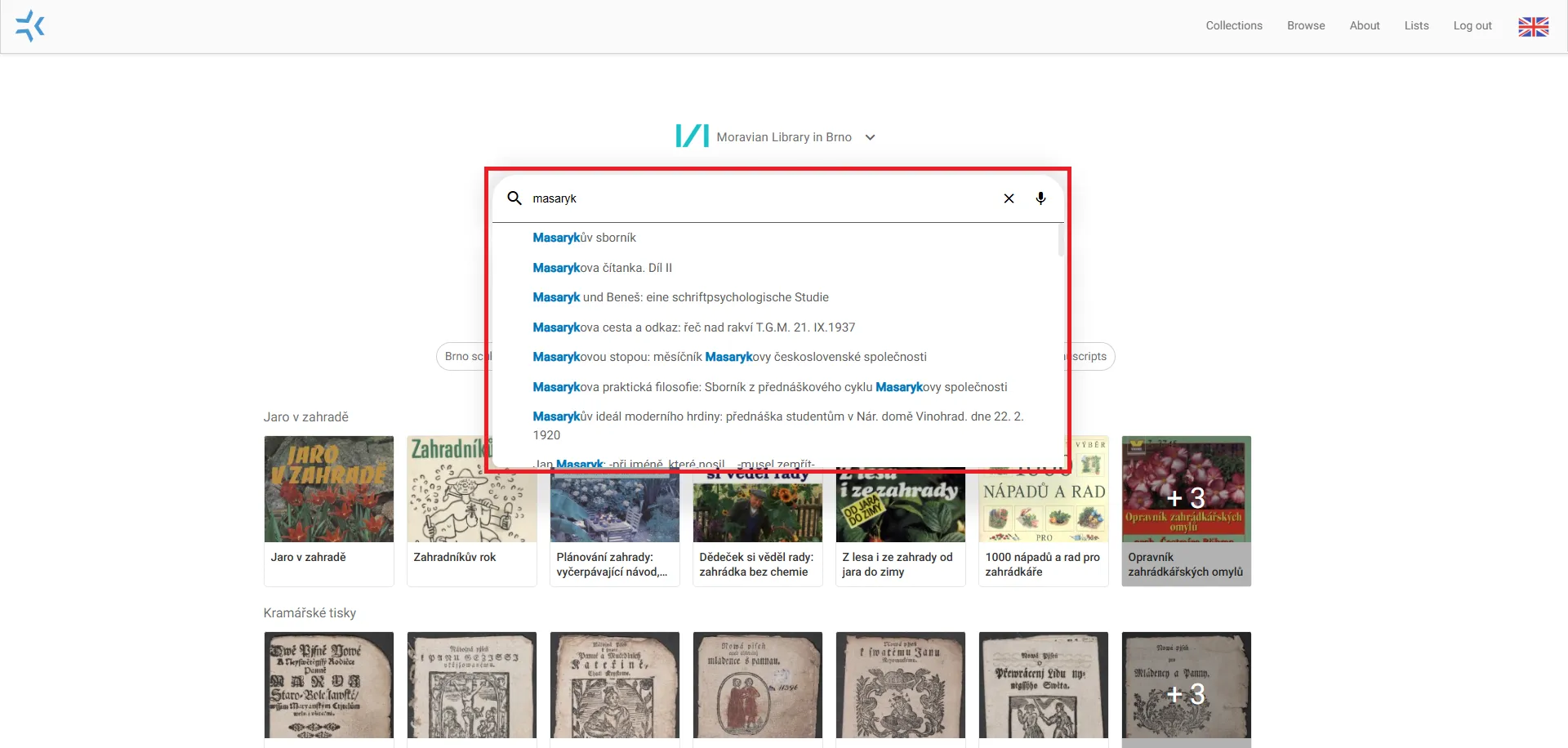
The main search bar is located at the top of the screen. This is a simple search where you enter search terms one after another. The search includes an autocomplete feature that suggests titles based on their names. If you do not select a specific document from the autocomplete list, the search will be a full-text search of the entire digital library.
Main search bar
Logical operators, wildcards, advanced search
To narrow down your search, you can use logical operators and wildcards. Examples of search queries are provided below.
? as a wildcard for exactly one character, e.g., P?n prstenů
You must always enter your search term in the search box. You can also narrow your search using advanced search options, such as limiting the search to document titles only. This will make your search results even more precise.
Logic operators
Search (Filters)
After entering the search term in the search bar, you will see the search results. You can refine these results using the filters in the left column.
The following filters are available:
Availability
Licence
Document Type
Publishing Year
Keyword
Author
Geographic name
Genre
Publisher
Place of Publication
Location
Language
You can see the filters you've applied at the top of the left column, and you can easily remove them by clicking the X icon. You can also sort the documents, for example, alphabetically, by most recently added, by oldest, or by new.
The search, filters
To make searching maps easier, you can use the geographic search feature. Enter the keyword you’re looking for in the search bar (e.g., military topography), press Enter, and then click the "Show results on map" button on the search results page. The button is located at the top right, between the result sorting filter and the classic view toggle (see the image below).
View results on the map
Browse
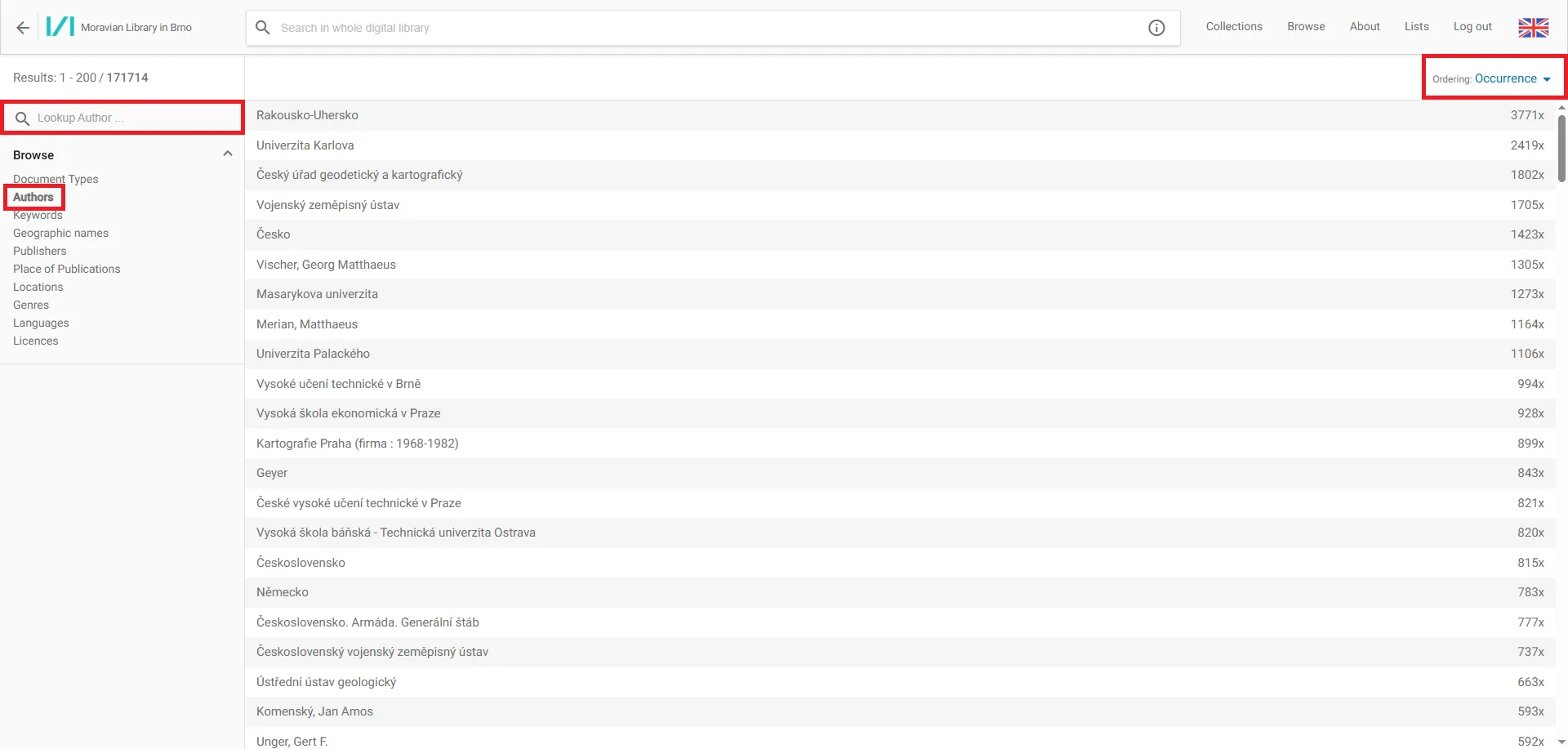
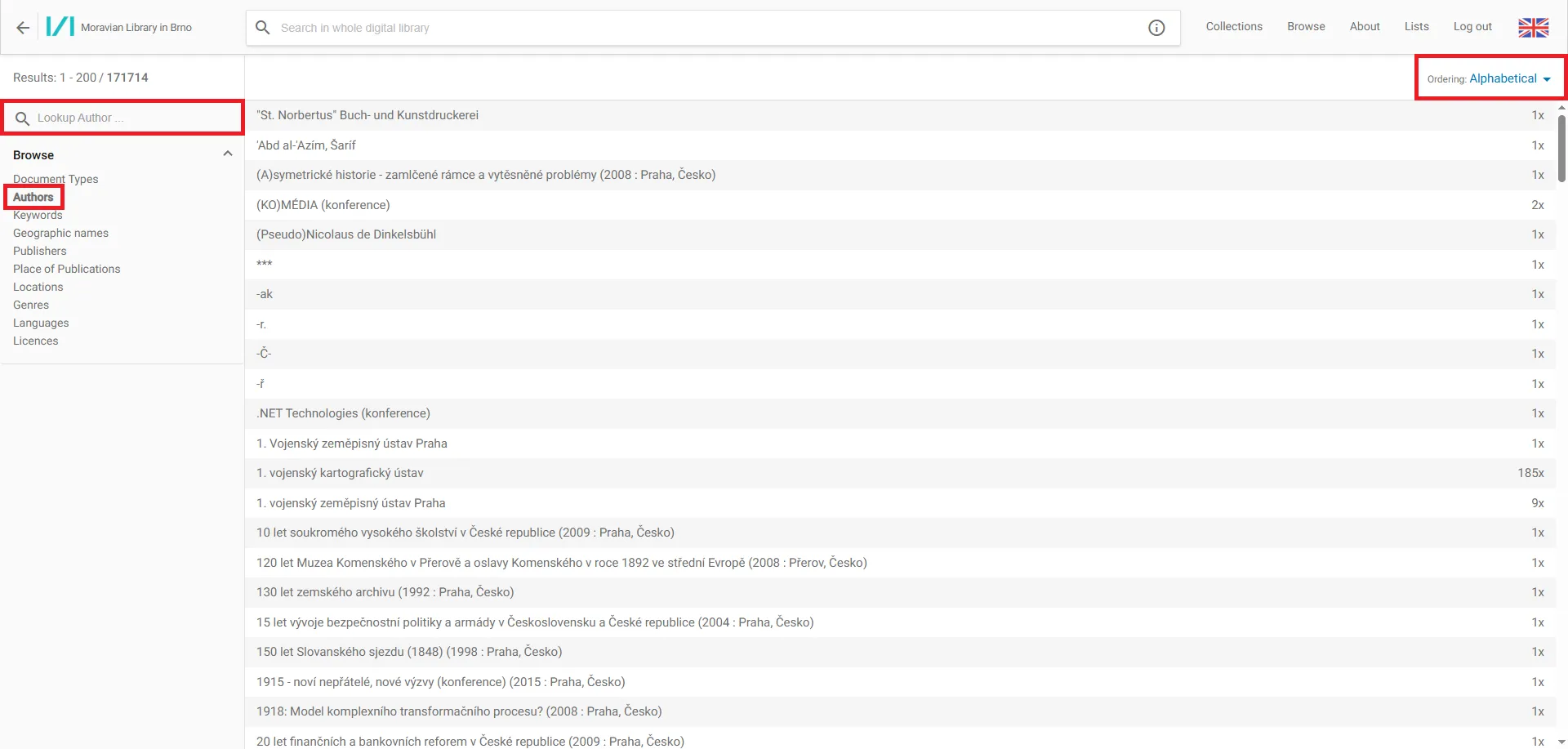
When you select the Browse option, you can browse the contents of the digital library by the following categories: Document Type, Authors, Keywords, Geographic Names, Publishers, Places of Publication, Locations, Genres, Languages, and Licenses. You can also choose the Ordering of the results by frequency of occurrence or alphabetically.
Browse
Filtering:
Browse by category in a list sorted by occurrence
Browse by author and in alphabetical order
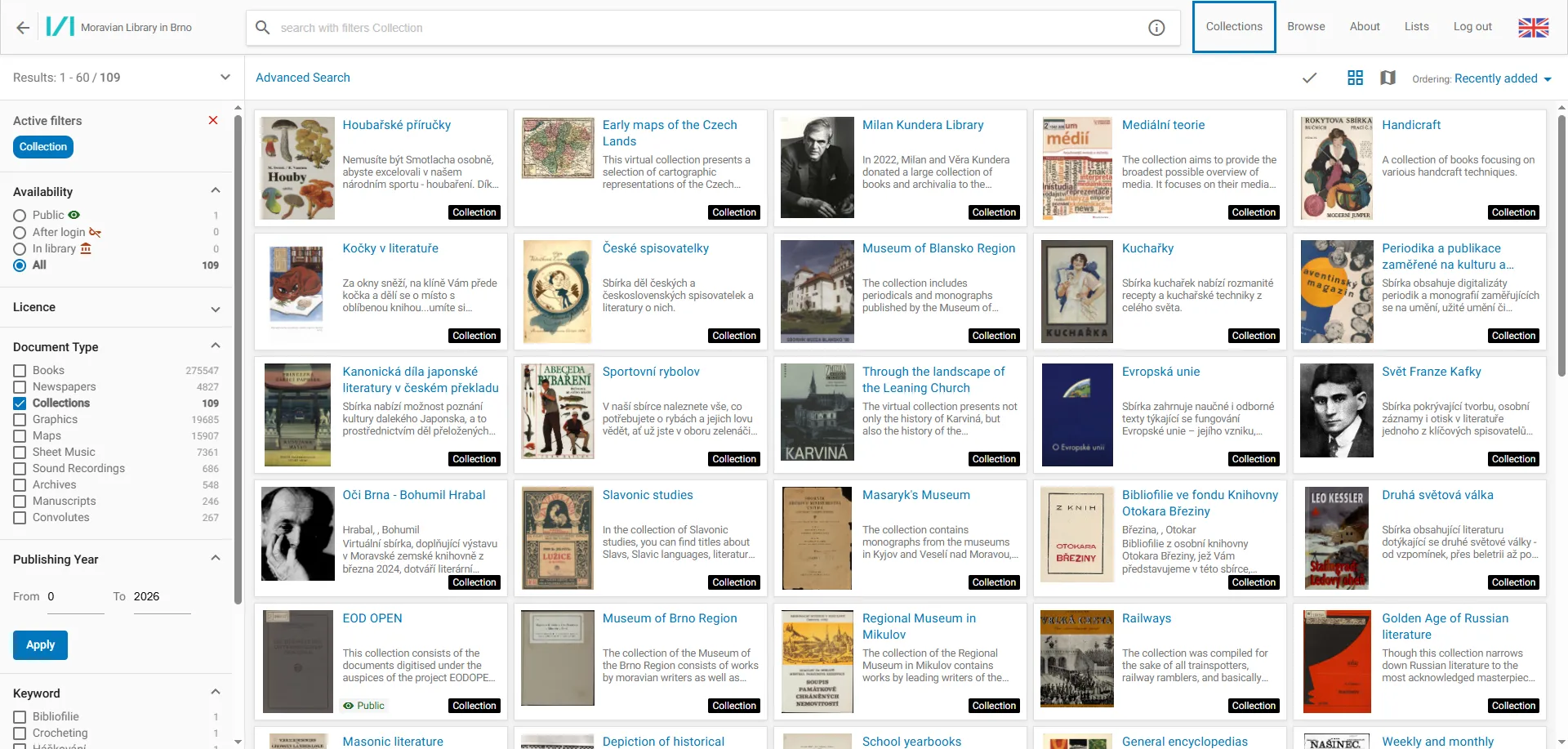
Collections
Here you can view the thematic collections available in the Digital Library MZK. You can access them by clicking the Collections button in the upper right corner. The collections are listed in alphabetical order. When you select a specific collection, a list of documents will appear. The name of the collection will be displayed as a filter in the left column of the search results.
Thematic Collections
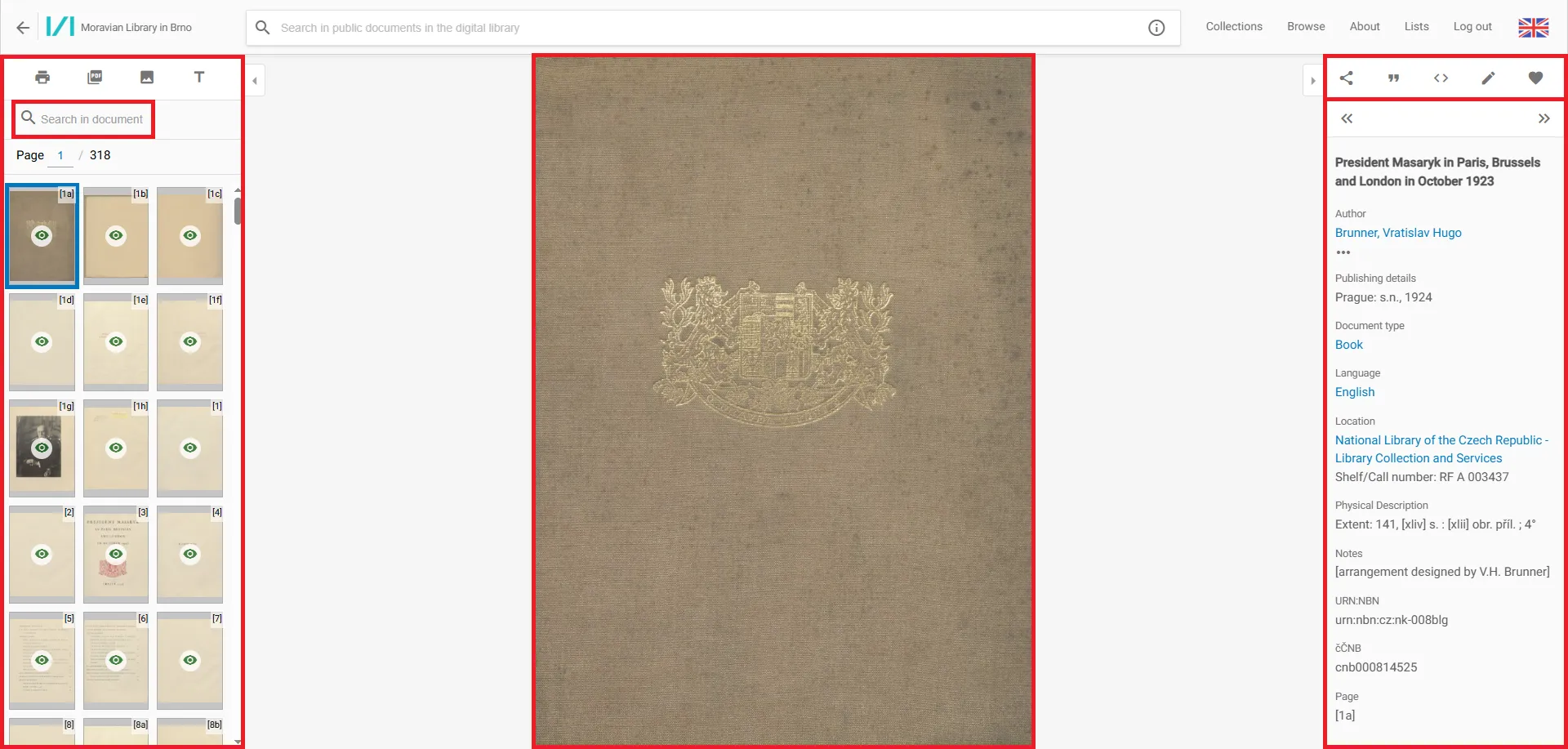
How do I view the document?
Clicking on a document in the list will take you to the document itself.
On the left side, you'll find a list of pages and a search bar for searching within the document.
On the right-hand side, you can see details about the document.
At the bottom of the displayed page, hovering your mouse over the area will bring up a menu containing additional options for working with the page or document (zoom in, zoom out, full-screen view, rotate, two-page view, lock zoom level, and arrows for turning pages).
In the upper-right corner, you'll find options to share (create a permanent link to the document page or share directly on social media), generate a citation, view metadata, and after logging in, you can add a document to your favorites list.
View document
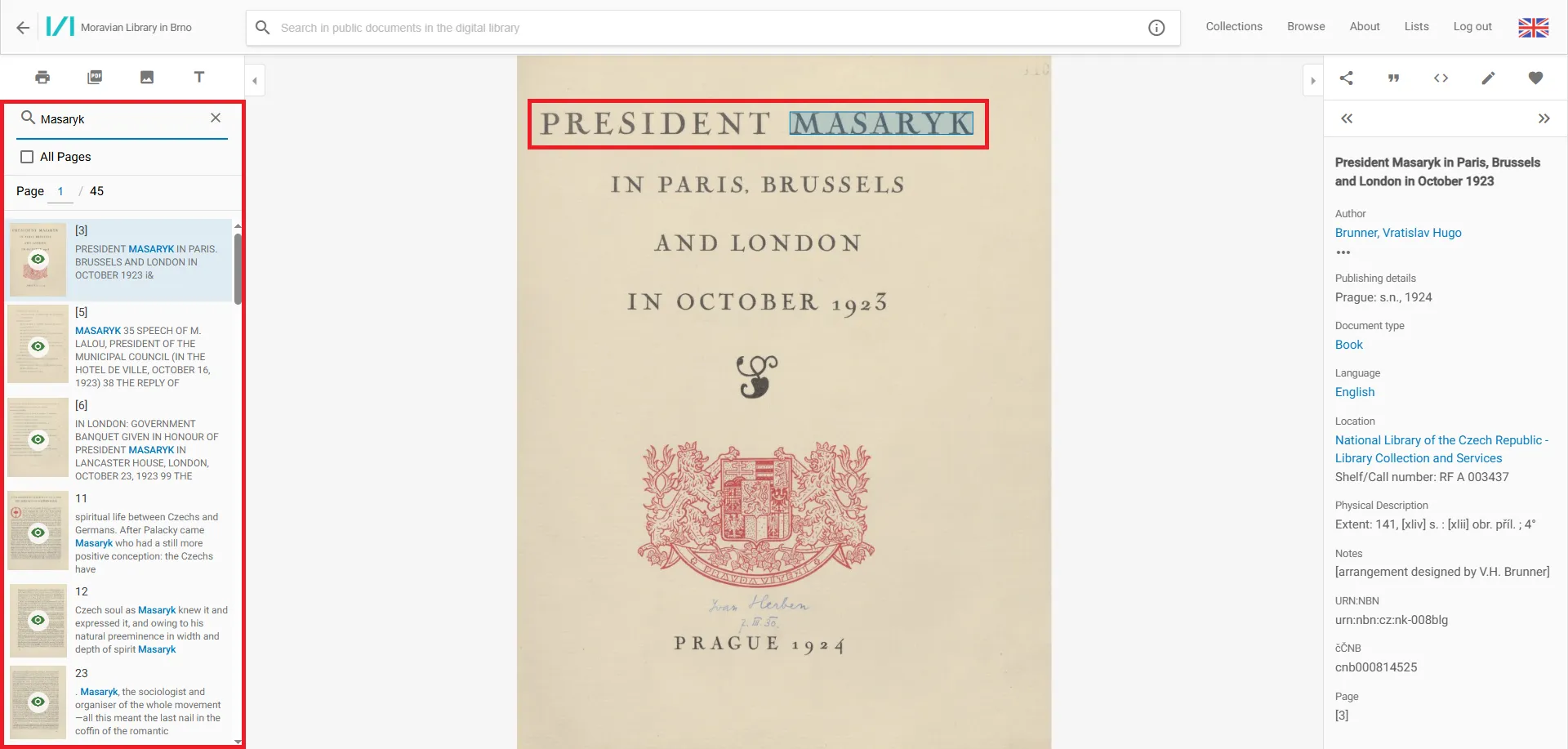
Search in document
You can also search through the full text of the document. In the upper-left corner, there is a bar labeled Search in document that includes a search suggestion feature. When you enter a search term, the document is filtered to show only the pages that contain that term. You can cancel this search by clicking the X next to the search term.
Search in document
How to generate a PDF?
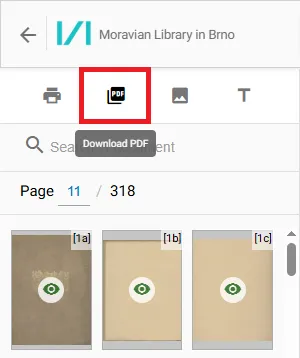
If you are viewing a specific document, click the PDF icon in the upper-left corner.
PDF icon
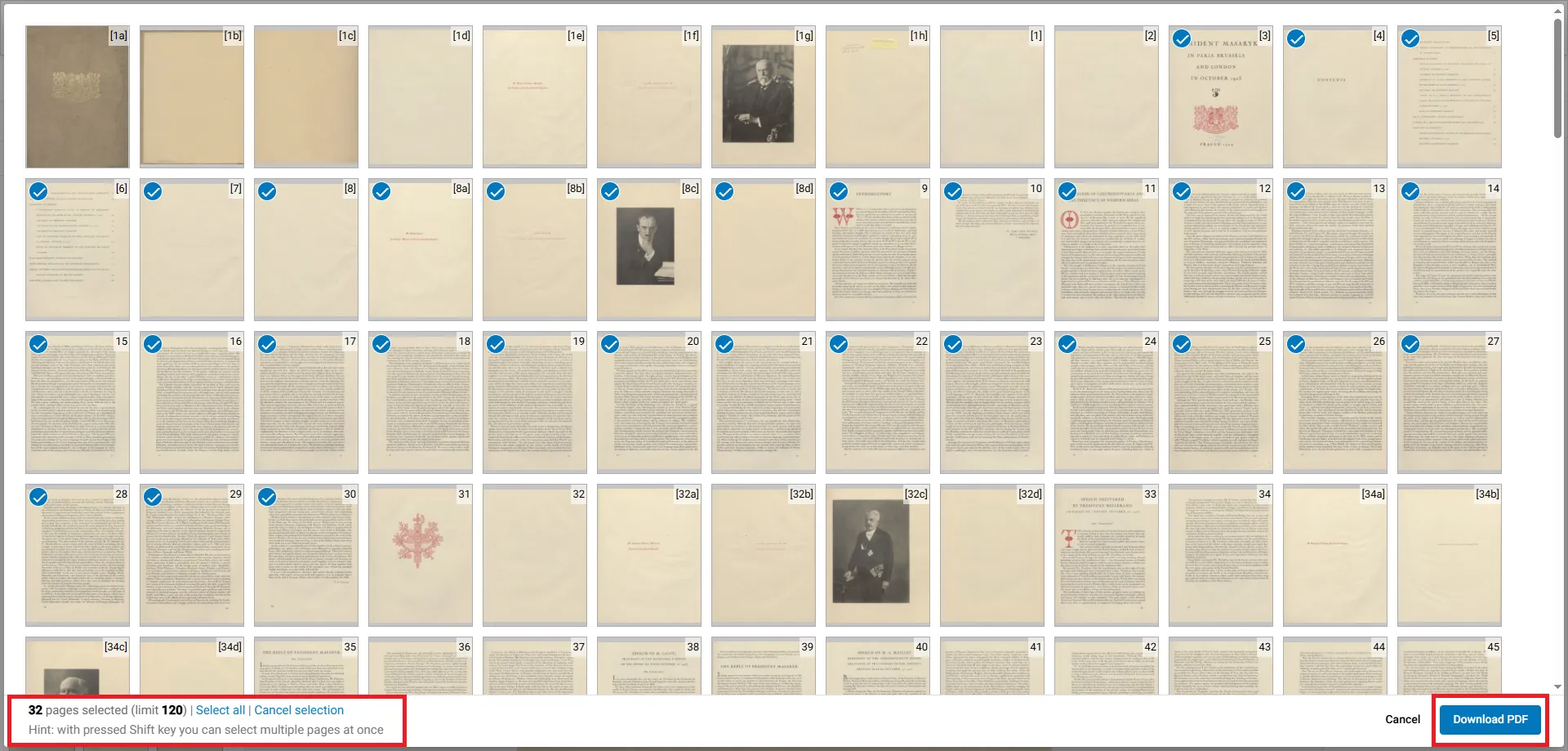
A window will appear where you can select a range of pages. If you want to select a larger range of pages, first click on the first page you want, then hold down the Shift key and click on the last page you want. At the bottom left, you’ll find the Select All option; clicking this button will select all pages. The maximum number of pages per PDF is 120. At the bottom left, you can also see how many pages you’ve selected. Once you’ve selected the desired pages, click Download PDF.
Select a range of page
The PDF file will appear as a standard downloadable file.
Note: PDF generation is available only for public documents.
How do I print a document?
If the document is publicly available, first generate a PDF (see the previous step) and send it to the printer.
The Prepare for Printing option can be used for both publicly available documents and non-public documents on the computers of the Moravian Library. To print, follow these steps:
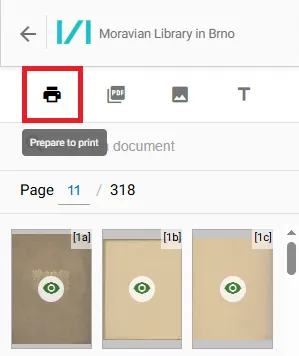
If you have a specific document open, click the Prepare to print icon in the upper-left corner.
Print icon
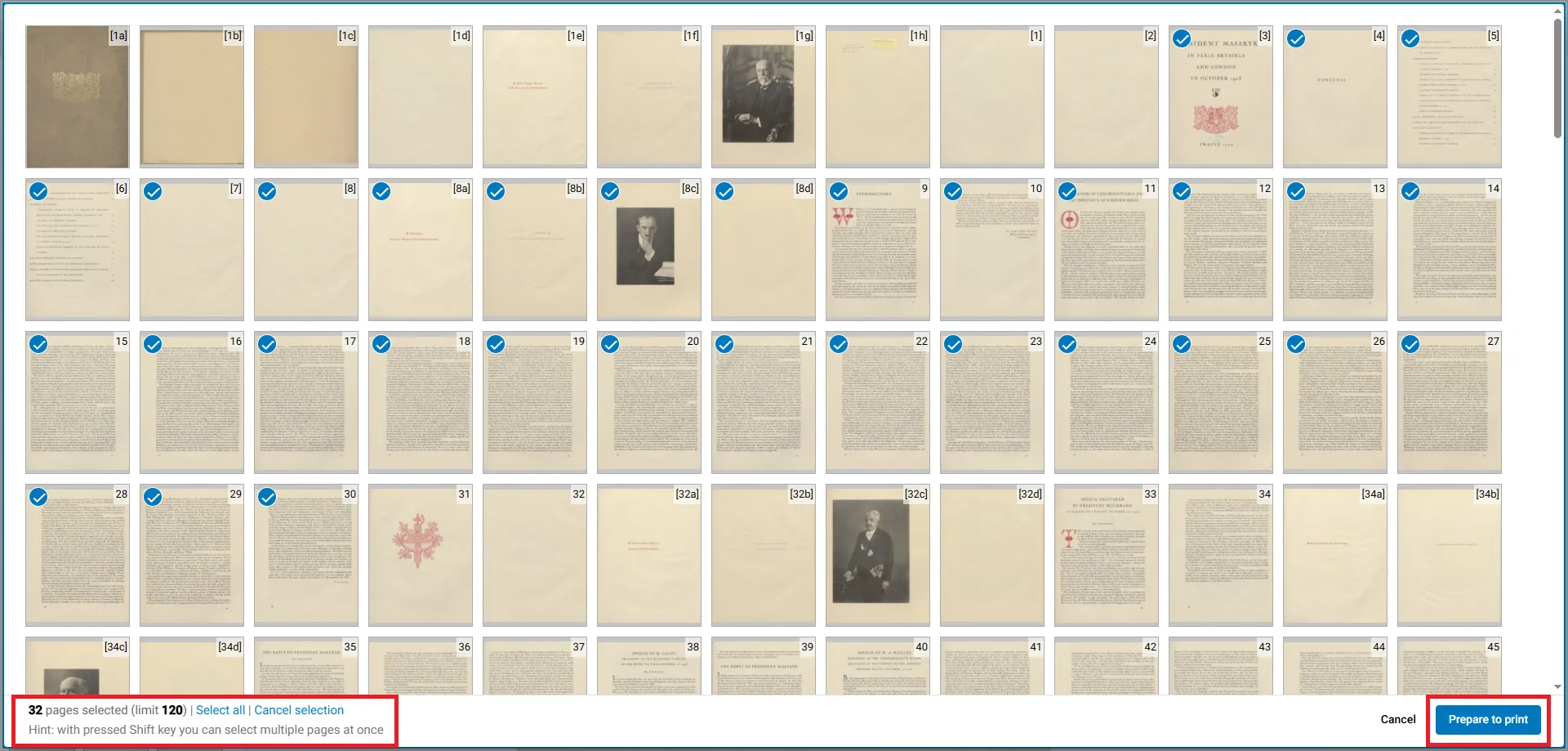
The Prepare for Printing window will appear. Select the desired page range. You can select multiple pages using the Shift key or select all pages using the Select All button. Finally, click Prepare for Printing.
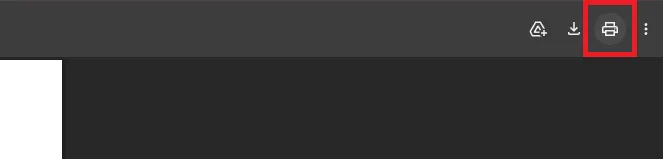
A PDF containing the pages you selected for printing will open in a new tab in your browser. This allows you to review the pages you want to print. If everything looks good, click the printer icon in the upper-right corner.
Print pages
You can now set up your print job. For more information on print settings for the printers of the Moravian Library, please refer to this guide. You can print on the printers located on the ground floor, the 2nd, 4th, and 6th floors.
We would like to inform you of the following changes to our opening hours: December 12 ClosedDecember 13 Periodicals Reading Room ClosedDecember 228.30–19.00December 238.30–14.00December 24, 2025 – January 4, 2026ClosedThank you for your understanding.
Arcanum Maps
Digital database of newspapers and magazines from Central and Eastern Europe
Please note that on 21 June we will be open on Saturdays for the last time and the last week of June (23-27 June) we will be open only until 19.00. From 30 June to 31 August 2025 the library will switch to summer operation: MON, WED, FRI9.00–15.00TUE, THU10.00–18.00The library will be closed to th...